How to Clean and Maintain a Laptop Privacy Screen Without Damaging It
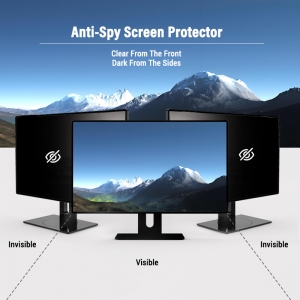
A laptop privacy screen helps protect sensitive information by limiting what people can see from the sides. However, fingerprints, dust, and smudges can gradually affect its appearance and make the display less comfortable to use.
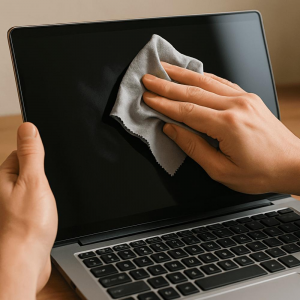
The safest way to clean a laptop privacy screen is to remove loose dust first, then gently wipe the surface with a clean, soft microfiber cloth. If additional cleaning is needed, use a small amount of water on the cloth rather than spraying liquid directly onto the screen. Always follow the manufacturer's cleaning instructions, especially if the privacy filter has a special surface coating.
This guide explains how to clean, maintain, and protect a laptop privacy screen without damaging its optical structure or surface.
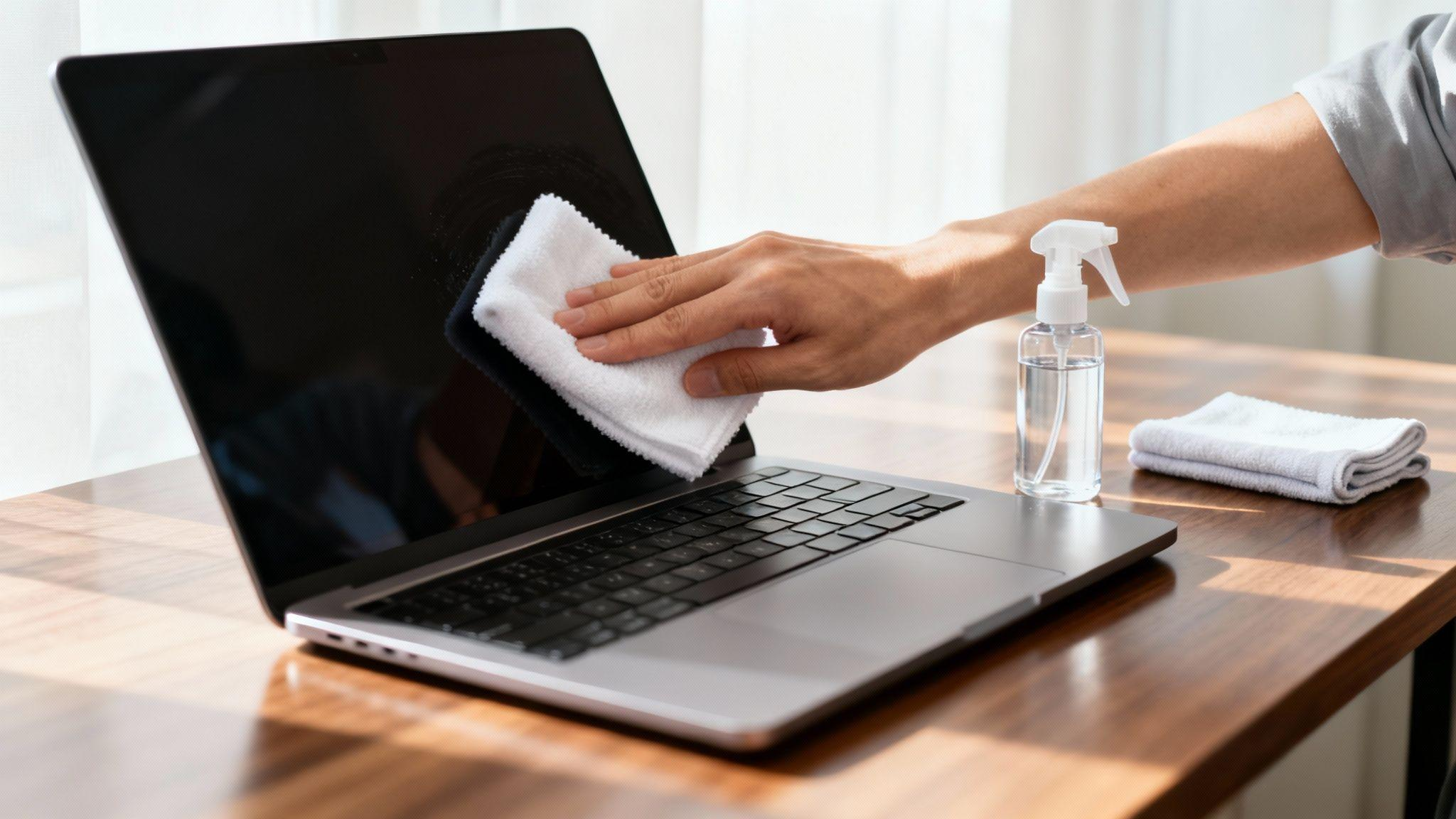
1. Why Does a Laptop Privacy Screen Need Regular Cleaning?
A laptop privacy screen is exposed to dust, fingerprints, skin oils, and other everyday contaminants. These can accumulate during normal use, particularly when users frequently open and close their laptops or work in shared environments.
Regular cleaning helps to:
-
Remove fingerprints and visible smudges.
-
Keep the screen surface looking clean.
-
Reduce dust accumulation.
-
Maintain a comfortable front-view experience.
-
Prevent dirt from building up around the edges and mounting areas.
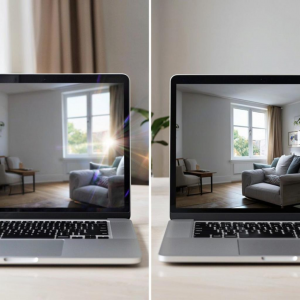
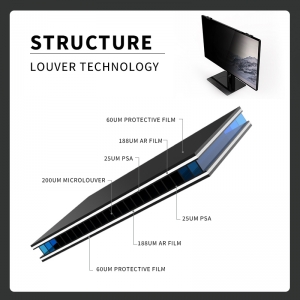
Unlike an ordinary clear screen protector, a privacy filter is designed to control viewing angles. Many conventional privacy filters use a micro-louver optical structure to reduce side-angle visibility.
For this reason, cleaning should be gentle. Scratching, excessive pressure, or unsuitable cleaning chemicals may damage the surface or affect the filter's appearance.
2. What Do You Need to Clean a Laptop Privacy Screen?
Before cleaning, prepare the appropriate materials.
| Cleaning material |
Recommended use |
| Clean microfiber cloth |
Removing fingerprints and light smudges |
| Distilled water |
Helping remove stubborn surface marks when permitted by the manufacturer |
| Soft air blower |
Removing loose dust before wiping |
| Manufacturer-approved screen cleaner |
Removing dirt when specifically approved for the product |
| Clean, dry microfiber cloth |
Final gentle drying |
Avoid using paper towels, tissues, rough fabrics, abrasive cleaning pads, or household cleaning products.
These materials may leave fibers, create scratches, or damage surface treatments.
Important: Not every privacy filter has the same surface construction. If the manufacturer provides specific cleaning instructions, those instructions should take priority over general cleaning advice.
3. How to Clean a Laptop Privacy Screen Step by Step
Follow these steps to clean a laptop privacy screen safely.
Step 1: Turn Off the Laptop
Shut down the laptop and disconnect the power supply before cleaning.
Allow the display to cool if it has been running for a long time. A dark, cool screen also makes dust and fingerprints easier to identify.
If the privacy filter is removable, check the manufacturer's instructions before taking it off.
Step 2: Remove Loose Dust
Use a soft air blower or another suitable dust-removal method to remove loose particles.
Do not immediately rub a dusty surface with a cloth. Small particles trapped between the cloth and the filter may create scratches during wiping.
Step 3: Use a Clean Microfiber Cloth
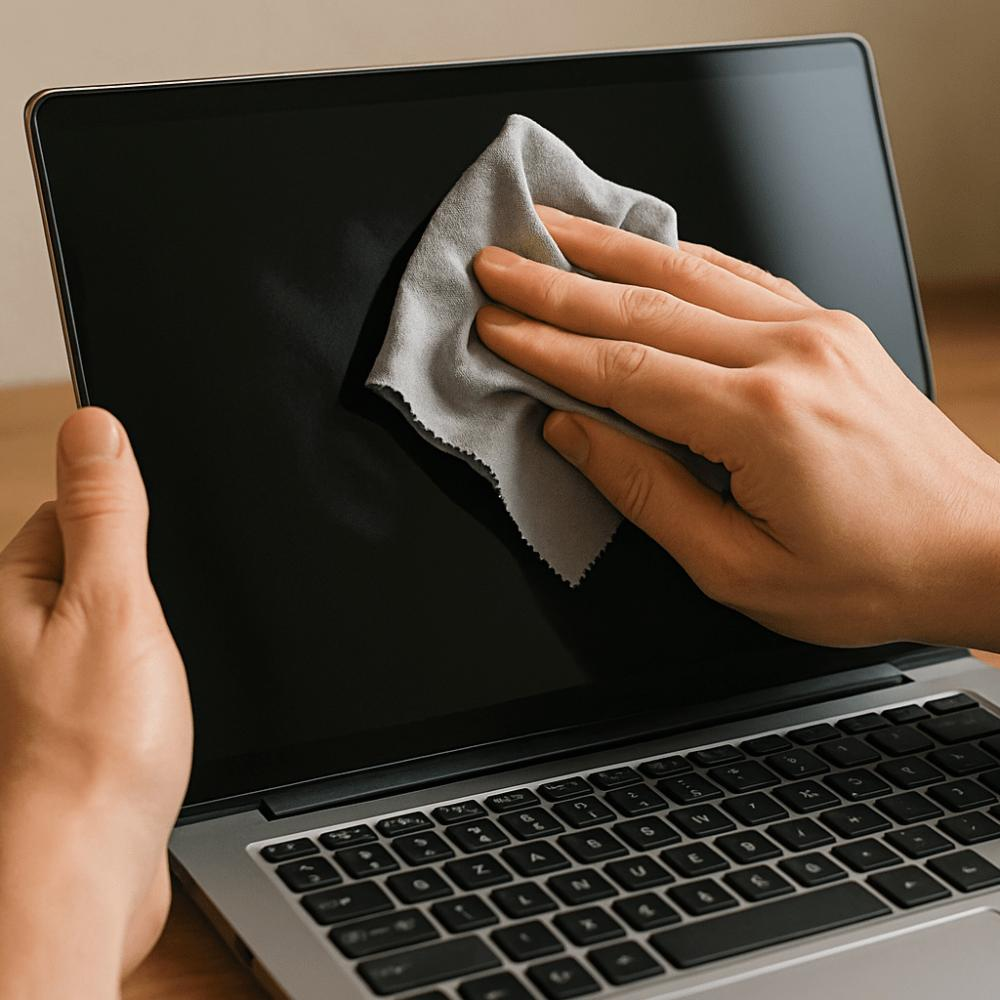
Gently wipe the privacy screen using a clean, soft microfiber cloth.
Use light pressure and small, controlled movements. Avoid pressing hard against the display, especially when the filter is attached directly to the laptop screen.
If the surface is not very dirty, a dry microfiber cloth may be sufficient.
Step 4: Use a Small Amount of Water if Needed
For fingerprints or marks that do not come off with dry wiping, slightly dampen a clean microfiber cloth with distilled water, provided the product's cleaning instructions allow it.
The cloth should be damp, not wet.
Never spray water or cleaning liquid directly onto the privacy filter or laptop display. Excess liquid may enter the screen edges, mounting areas, or device openings.
Step 5: Wipe Gently and Dry
Gently wipe the affected area without applying excessive pressure.
Use a second clean, dry microfiber cloth to remove remaining moisture.
Make sure the filter is completely dry before using the laptop or closing the screen.
4. What Should You Avoid When Cleaning a Laptop Privacy Screen?
Using the wrong cleaning method can damage a privacy filter or affect its surface finish.
Here are common mistakes to avoid.
Using Alcohol Without Checking Compatibility
Some screen-cleaning products contain alcohol or other solvents. These substances may be unsuitable for certain coatings or filter materials.
Do not assume that a cleaning solution suitable for a glass screen protector is also safe for a privacy filter.
Check the manufacturer's instructions before using alcohol-based products.
Spraying Liquid Directly onto the Screen
Direct spraying can allow liquid to collect around the edges or enter the laptop display assembly.
Always apply an approved cleaning liquid to the cloth first, never directly to the screen.
Using Paper Towels or Tissues
Paper products may contain rough fibers that can scratch delicate surfaces or leave lint behind.
A clean microfiber cloth is generally a safer choice.
Applying Too Much Pressure
Strong pressure may damage the filter surface or place unnecessary stress on the laptop display.
Use gentle movements and avoid pressing hard when removing stubborn marks.
Using Abrasive Materials
Scouring pads, rough fabrics, brushes with stiff bristles, and abrasive cleaning compounds should not be used on a privacy filter.
They may leave scratches that cannot be removed through ordinary cleaning.
Using Household Glass Cleaners
Window cleaners and general-purpose household chemicals may contain ingredients that are unsuitable for privacy filter materials or coatings.
Only use products approved for the specific filter.
5. How to Maintain a Laptop Privacy Screen in Daily Use
Cleaning is only one part of privacy screen maintenance. Proper daily handling can help reduce wear and keep the filter in good condition.
Keep the Surface Free from Dust
Remove loose dust regularly, especially around the filter edges and attachment points.
Dust buildup can make cleaning more difficult and may become trapped between the filter and the laptop display.
Avoid Touching the Optical Surface
Handle the filter by its edges whenever possible.
Repeatedly touching the viewing area can leave fingerprints and skin oils that require additional cleaning.
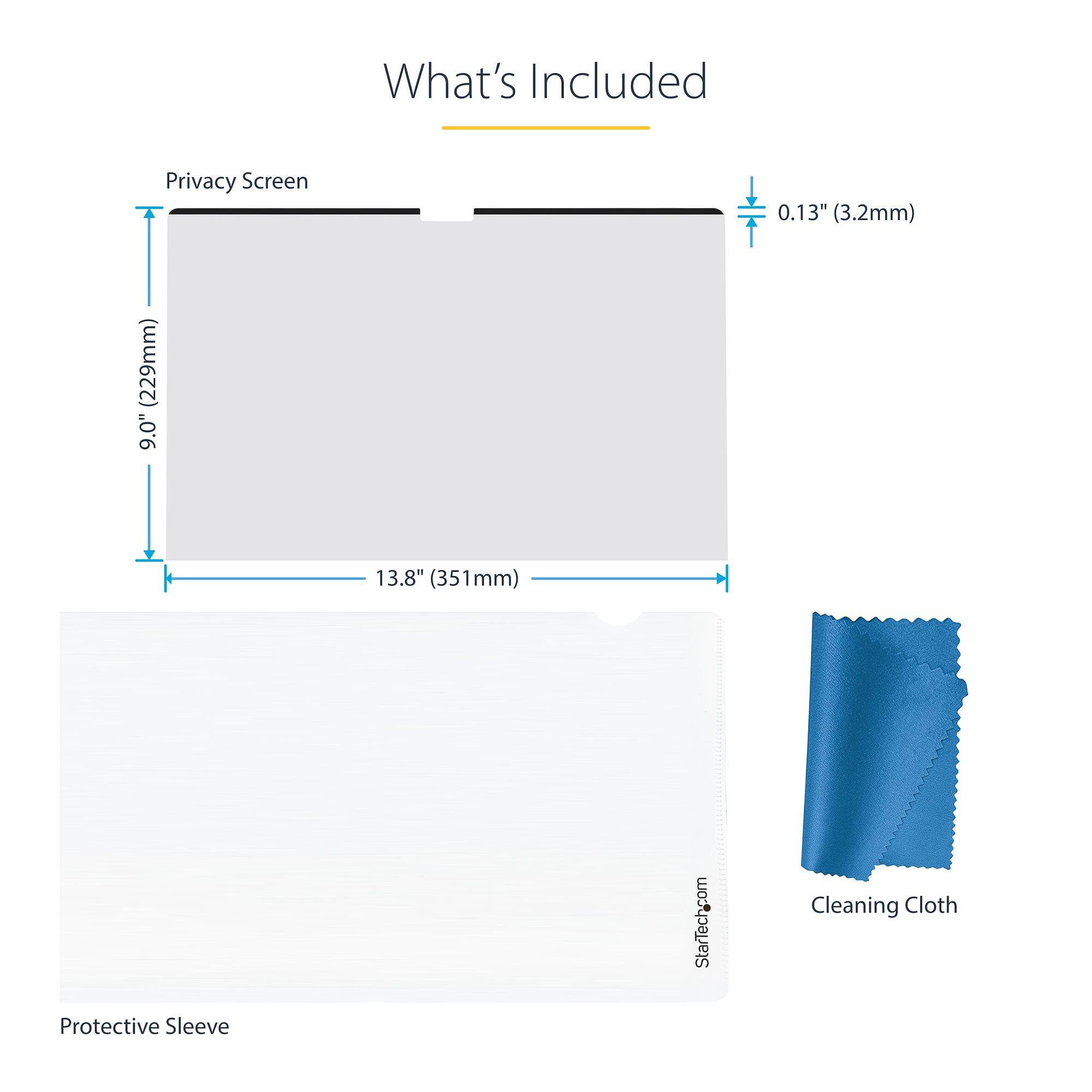
Store Removable Filters Properly
If the privacy filter is designed to be removed, follow the manufacturer's storage instructions.
Use a suitable protective sleeve or storage case if recommended. Avoid placing the filter directly against keys, metal objects, or other hard materials.
Check the Mounting Areas
Inspect the filter's attachment points periodically.
For magnetic, adhesive, or slide-on designs, check for dust, looseness, or signs of wear. Follow the supplier's instructions before adjusting or reinstalling the filter.
Handle the Laptop Carefully
Avoid placing heavy objects on the closed laptop or putting unnecessary pressure on the screen.
When closing the laptop, make sure there are no objects trapped between the keyboard and display.
6. How Often Should You Clean a Laptop Privacy Screen?
Cleaning frequency depends on how often the laptop is used and the working environment.
| Usage environment |
Suggested cleaning approach |
| Regular office use |
Remove visible fingerprints and dust as needed |
| Frequent business travel |
Check and clean the surface regularly, especially after travel |
| Shared workspaces |
Clean when fingerprints or visible marks appear |
| Dusty environments |
Remove loose dust more frequently before wiping |
| Frequent handling or touch |
Check for fingerprints and smudges more often |
There is no need to clean a privacy screen excessively.
Frequent unnecessary wiping may increase the chance of accidental scratching, particularly if the cloth is not clean or dust has not been removed first.
A simple rule is to clean the filter when visible dirt affects its appearance or usability.
7. Does Cleaning Affect a Laptop Privacy Screen's Performance?
Proper cleaning with suitable materials should help maintain the filter's appearance and usability.
However, aggressive cleaning, scratches, damaged coatings, or incorrect handling may affect the surface condition and viewing experience.
For conventional micro-louver privacy filters, the optical structure is responsible for controlling light transmission at different viewing angles. Surface damage or contamination may affect how the filter looks and performs in everyday use.
If a filter develops deep scratches, peeling, permanent stains, or visible structural damage, ordinary cleaning may not restore its original condition.
In such cases, contact the supplier to determine whether the filter should be replaced.
FAQ
Can I clean a laptop privacy screen with alcohol?
Not all privacy screens are compatible with alcohol-based cleaners. Some products may have coatings or materials that can be affected by solvents. Check the manufacturer's cleaning instructions before using alcohol.
Can I use water to clean a laptop privacy filter?
A small amount of distilled water on a clean microfiber cloth may be suitable for some products. The cloth should be only slightly damp, and liquid should never be sprayed directly onto the filter or laptop screen.
Can I use a regular screen-cleaning spray?
Only if the cleaner is approved for the specific privacy filter. A product designed for ordinary glass displays may not be suitable for every privacy filter surface.
How do I remove fingerprints from a laptop privacy screen?
Start with a clean, dry microfiber cloth. If fingerprints remain, use a slightly damp cloth with distilled water if permitted by the manufacturer. Wipe gently and dry the surface afterward.
Can I clean a privacy filter while it is attached to the laptop?
Yes, if the filter's design and manufacturer instructions allow it. Turn off the laptop, avoid excessive pressure, and keep liquid away from the display edges. Removable filters should only be detached according to the supplier's instructions.
What should I do if my privacy screen has scratches?
Minor surface marks may sometimes be removable if they are actually residue rather than scratches. Genuine scratches generally cannot be removed through cleaning. Avoid polishing or using abrasive compounds, as these may cause further damage.
Does a privacy screen need special cleaning products?
Not necessarily. A clean microfiber cloth is often sufficient for routine cleaning. Additional cleaning products should only be used when approved by the manufacturer.
Conclusion
Keeping a laptop privacy screen clean does not require complicated tools or aggressive cleaning products. In most cases, removing loose dust and gently wiping the surface with a clean microfiber cloth is the safest starting point.
The most important rules are to avoid excessive pressure, abrasive materials, direct liquid spraying, and unapproved chemical cleaners. Proper daily handling and suitable storage can also help extend the useful life of a removable privacy filter.
YIPI (Shenzhen Xinpai Electronics Co., Ltd.) focuses on laptop and monitor privacy filter products for business applications. If you are a distributor, importer, corporate buyer, or private-label brand looking for privacy filter products, contact our team to discuss your requirements.
Explore YIPI Privacy Filter Products: https://www.privacyfilter.com/